



Overview:
Perfect your visual presentations in Canva by mastering the art of fitting a circle frame around your images. Elevate the aesthetics of your designs with this guide, offering a seamless process to effortlessly adjust and optimize the circular framing of your pictures. Enhance your design precision and overall appeal, ensuring a polished and professional look that captivates your audience. Unlock the full potential of Canva with step-by-step instructions on creating visually stunning compositions with perfectly fitted circle frames.
Who is Canva best suited for?
Canva is best suited for a wide range of professionals, including Marketing Teams, Graphic Designers, and Small Business Owners. For example, Marketing Teams can use Canva for designing promotional materials and social media graphics, Graphic Designers can leverage it for creating visual assets and branding elements, and Small Business Owners can use it for developing marketing content and engaging visuals, all benefiting from Canva’s user-friendly design tools and extensive template library.
How to fit the circle frame of your picture in Canva
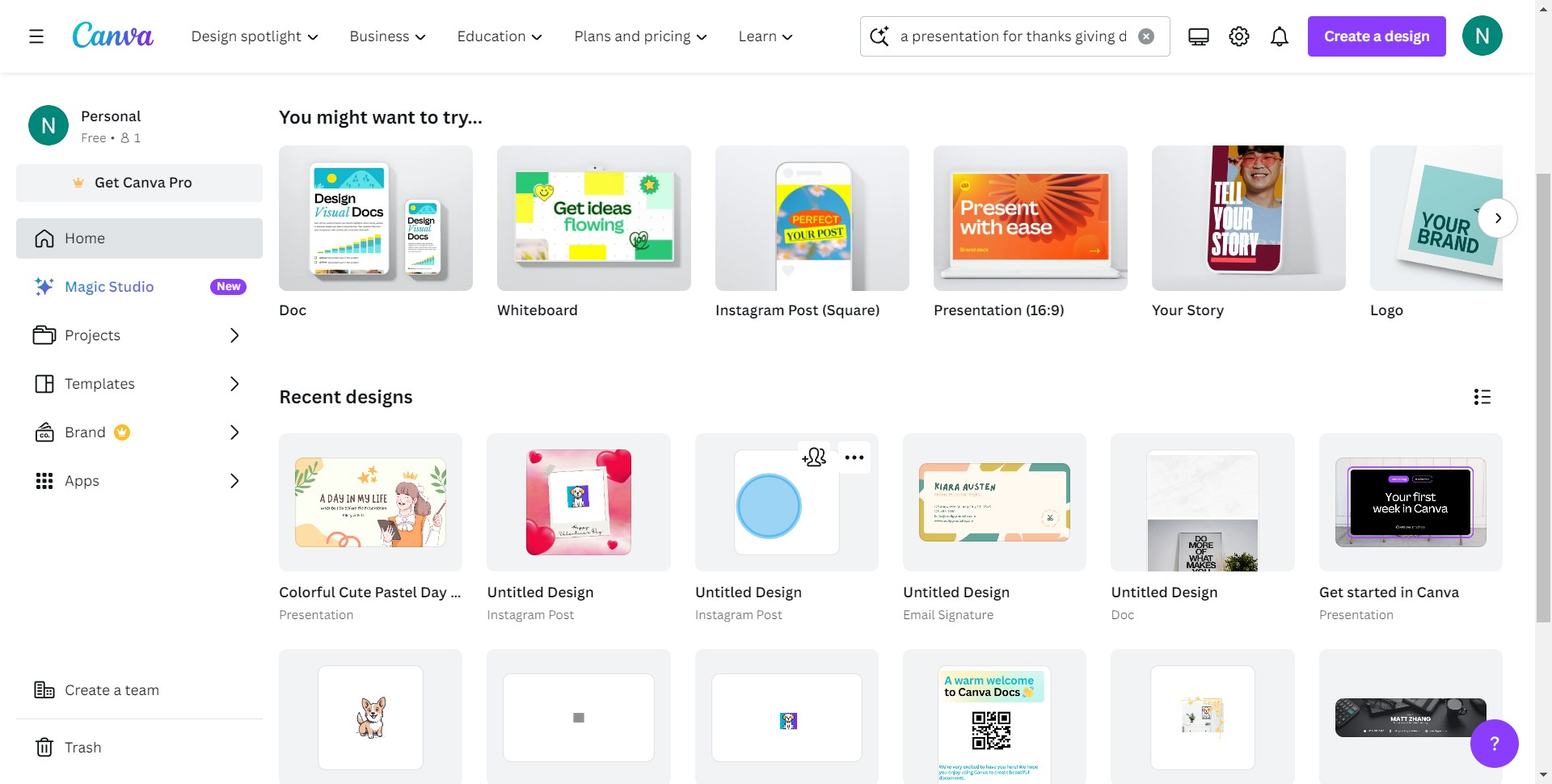
1. Choose a design document to work on
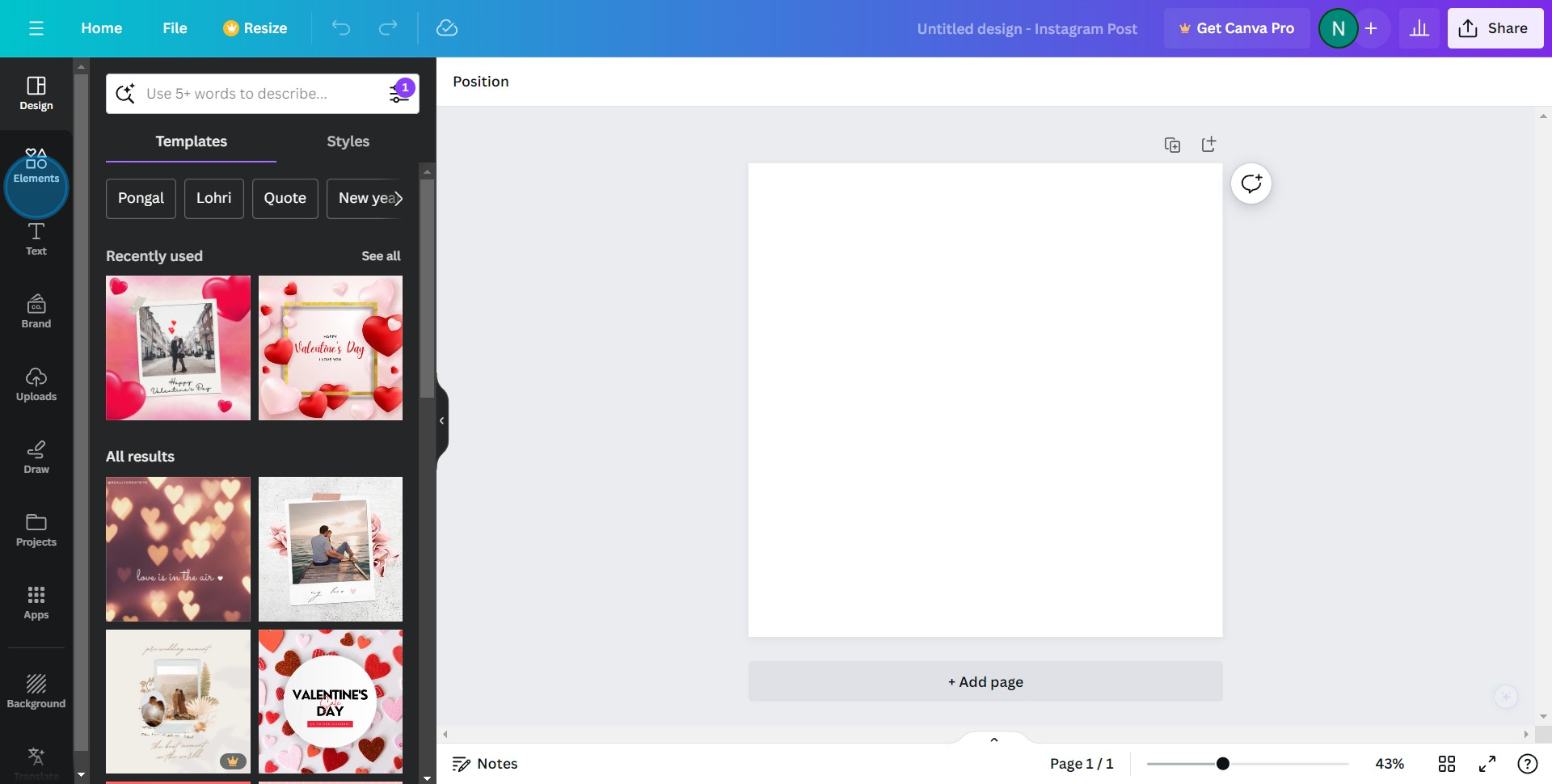
2. Find and select the 'Elements' tab
3. Identify and pick the image you want to frame
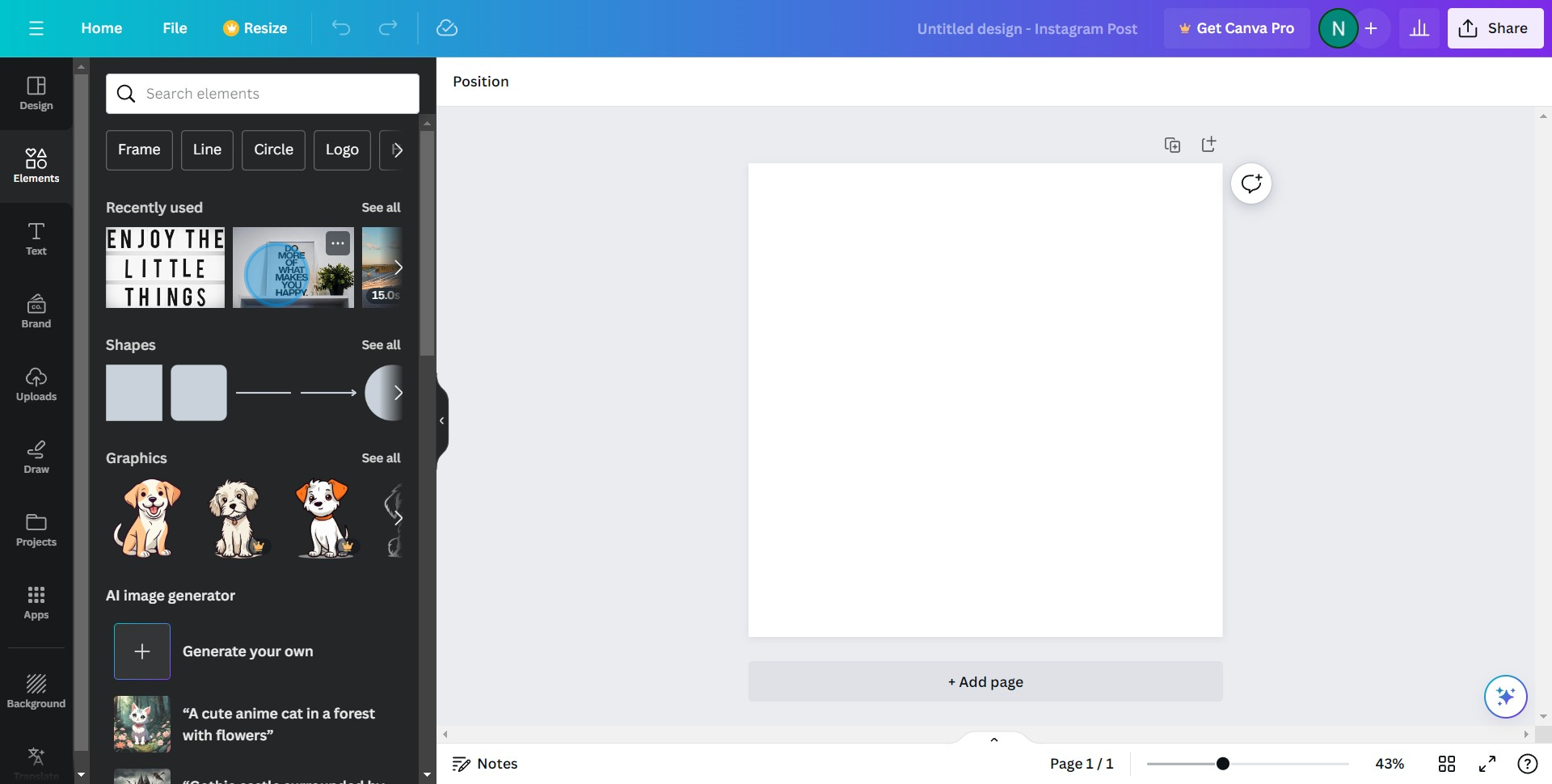
4. Next, click on 'Frame' from options
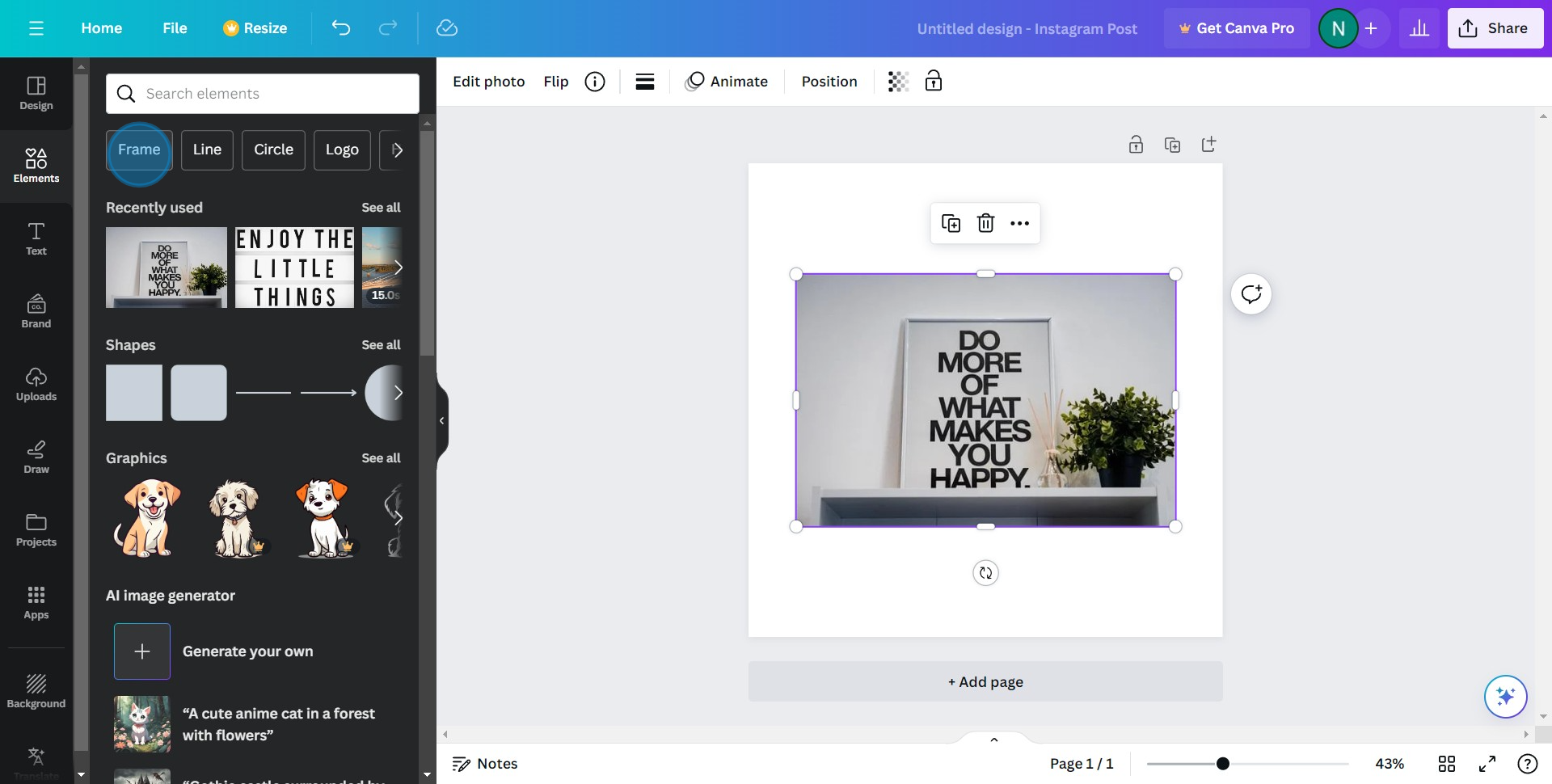
5. To locate more options, click on 'See all'
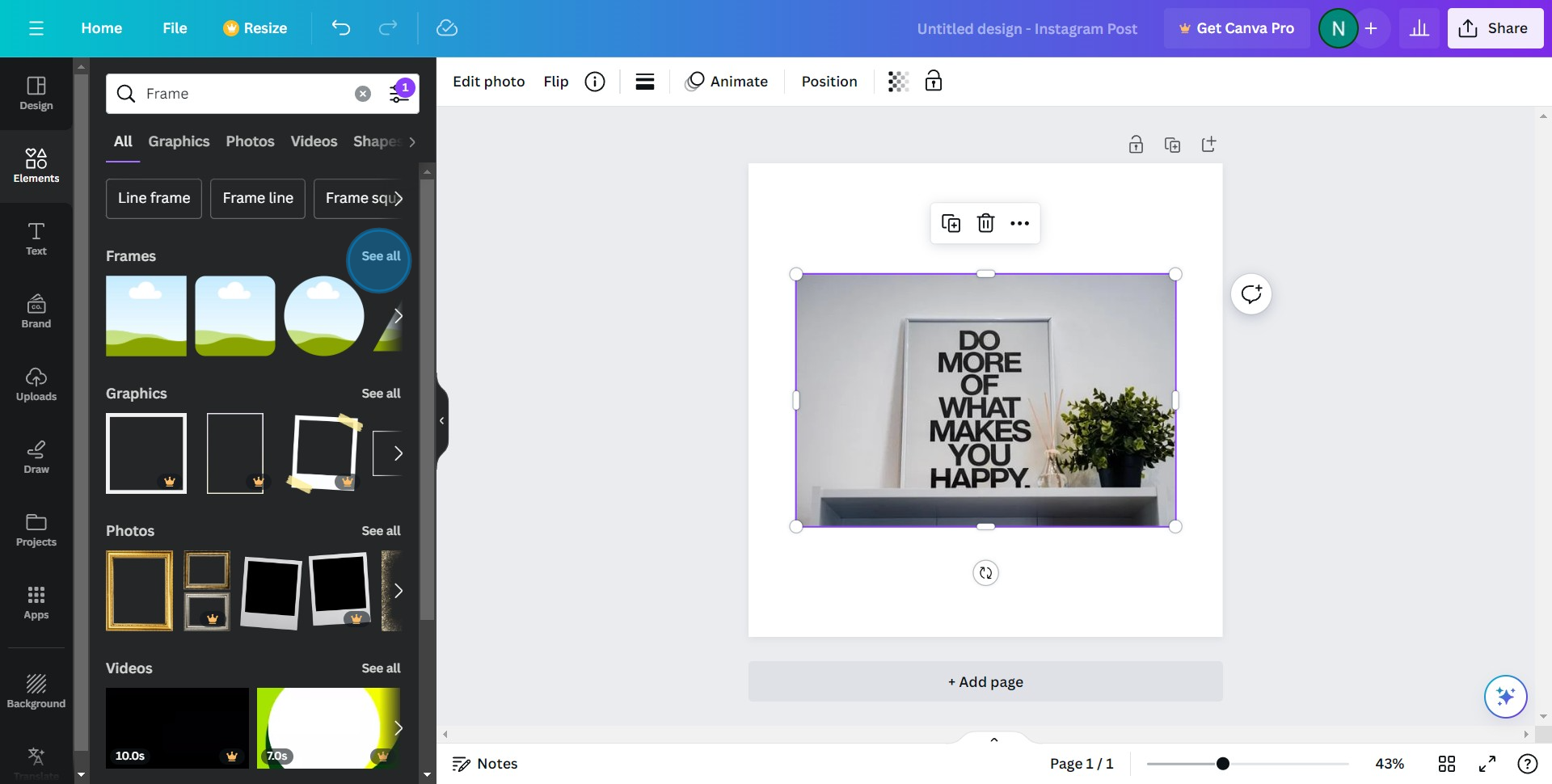
6. Select the frame that suits your image best
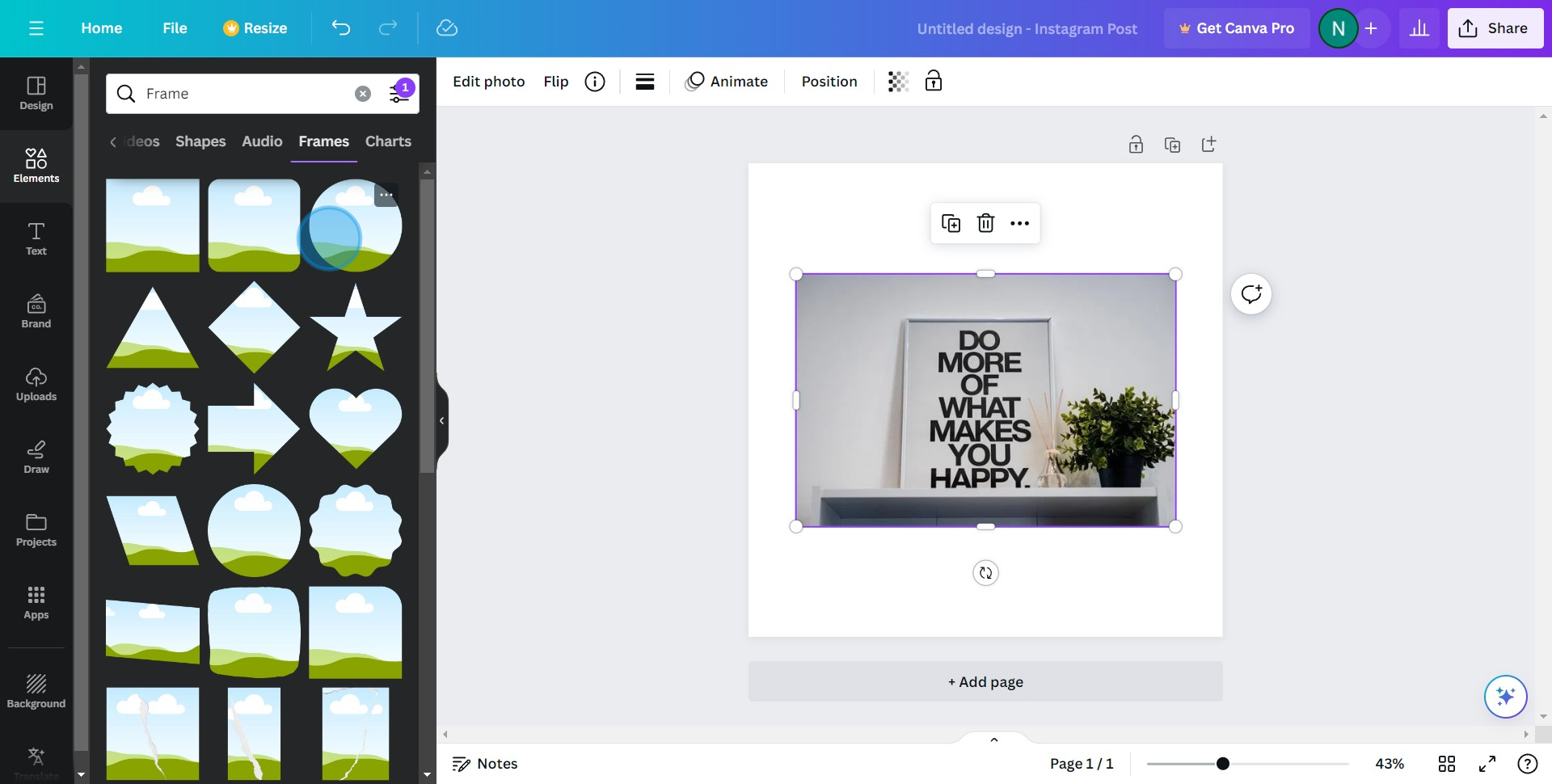
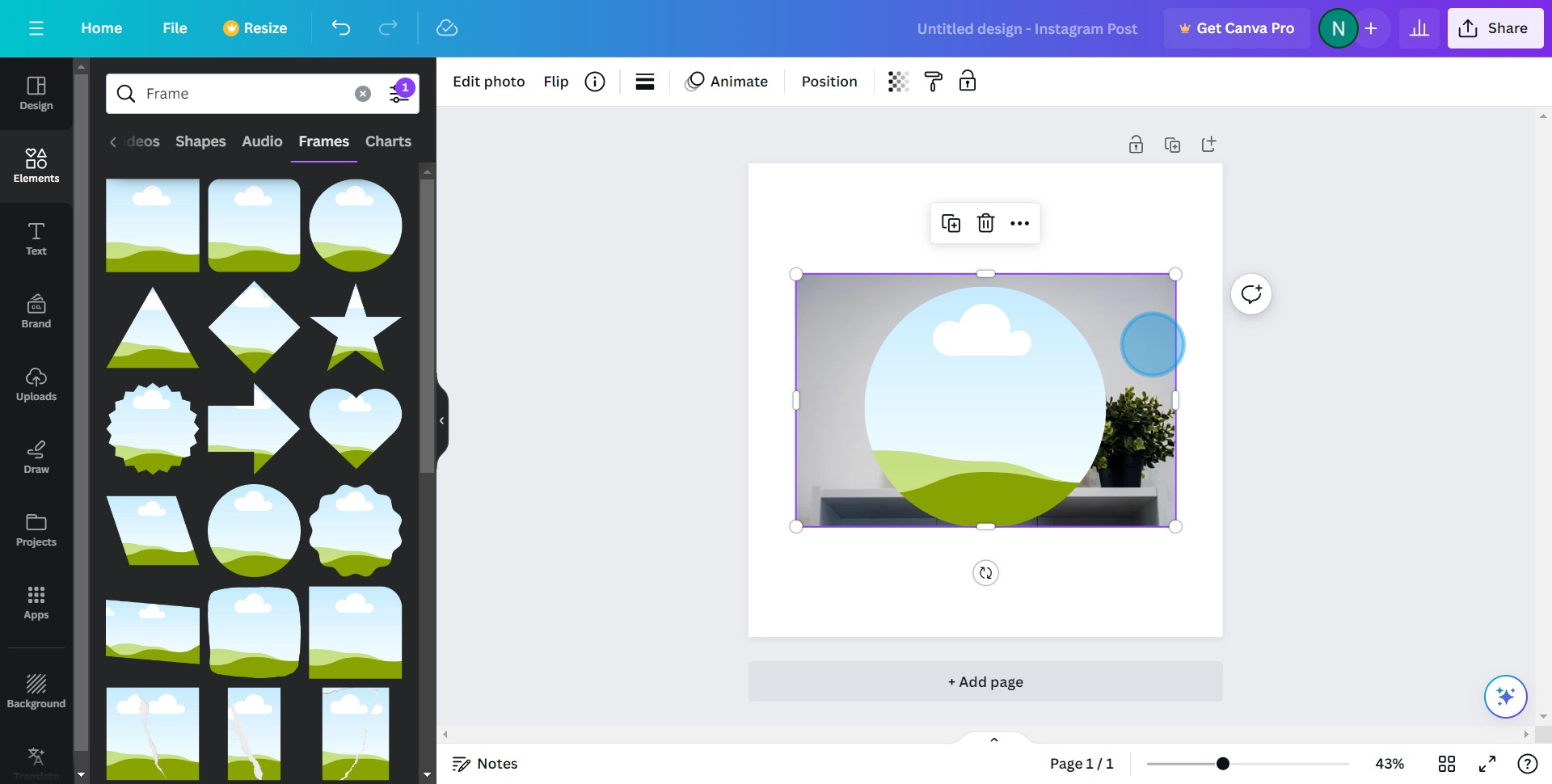
7. Drag your chosen image to the frame to fit it in automatically
Common FAQs on Google Docs
How do I create a design in Canva?
To create a design, log in to your Canva account and click on the “Create a design” button. Choose a design type from the available options (e.g., social media post, flyer, presentation) or enter custom dimensions. Canva will open a new design workspace with a blank canvas. Use the left sidebar to access templates, elements (such as text, images, and graphics), and tools to customize your design. Drag and drop elements onto the canvas, adjust their size and position, and apply styles to complete your design.
Can I collaborate with others on a Canva design?
Yes, you can collaborate with others on a Canva design. Open the design you want to share and click on the “Share” button in the top-right corner. Enter the email addresses of the people you want to collaborate with and choose their access level (Can edit, Can view, or Can comment). You can also generate a shareable link to invite others to access the design. Collaborators can make changes, leave comments, and provide feedback in real-time.
How do I download or export a Canva design?
To download or export a design, click on the “Share” button in the top-right corner and select “Download.” Choose the file type (e.g., PNG, JPG, PDF) and adjust any additional settings, such as image quality or page range. Click “Download” to save the file to your computer. You can also export your design directly to social media platforms or other integrated services by selecting the appropriate option from the “Share” menu.
Create your own step-by-step demo
Scale up your training and product adoption with beautiful AI-powered interactive demos and guides. Create your first Supademo in seconds for free.
